Simatic WinCC Data Monitor v7 Training
Siemens’ WinCC Data Monitor V7 is a robust tool designed for data visualization, analysis, and reporting in industrial automation systems. From its architecture to detailed configuration options, this guide explores the key features and functionalities, enabling users to maximize its potential in monitoring and reporting. Below is an in-depth overview of each topic to guide your learning and implementation.
Explore related content through our comprehensive series of 30 videos, covering all aspects of SIMATIC PCS7 and WinCC.
-
WinCC Data Monitor V7 – 01 Introduction
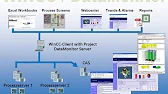
WinCC Data Monitor V7 – Introduction WinCC Data Monitor V7 is a powerful tool designed for effective data visualization, analysis,…
-
WinCC Data Monitor V7 – 02 Architecture
WinCC Data Monitor V7 – Architecture WinCC Data Monitor V7 is a powerful tool designed for effective data visualization, analysis,…
-
WinCC Data Monitor V7 – 03 Installation and Licensing
WinCC Data Monitor V7 – Installation and Licensing WinCC Data Monitor V7 is a powerful tool designed for effective data…
-
WinCC Data Monitor V7 – 04 Configuration
WinCC Data Monitor V7 – Configuration WinCC Data Monitor V7 is a powerful tool designed for effective data visualization, analysis,…
-
WinCC Data Monitor V7 – 05 Configuration Users
WinCC Data Monitor V7 – Configuration Users WinCC Data Monitor V7 is a powerful tool designed for effective data visualization,…
-
WinCC Data Monitor V7 – 06 Configuration Access Rights
WinCC Data Monitor V7 – Configuration Access Rights WinCC Data Monitor V7 is a powerful tool designed for effective data…
-
WinCC Data Monitor V7 – 07 Web Configuration
WinCC Data Monitor V7 – Web Configuration WinCC Data Monitor V7 is a powerful tool designed for effective data visualization,…
-
WinCC Data Monitor V7 – 08 Configuration Web Publisher
WinCC Data Monitor V7 – Configuration Web Publisher WinCC Data Monitor V7 is a powerful tool designed for effective data…
-
WinCC Data Monitor V7 – 09 Configuration Client
WinCC Data Monitor V7 – Configuration Client WinCC Data Monitor V7 is a powerful tool designed for effective data visualization,…
-
WinCC Data Monitor V7 – 10 Configuration of Connection
WinCC Data Monitor V7 – Configuration of Connection WinCC Data Monitor V7 is a powerful tool designed for effective data…
-
WinCC Data Monitor V7 – 11 Trends and Alarms Overview
WinCC Data Monitor V7 – Trends and Alarms Overview WinCC Data Monitor V7 is a powerful tool designed for effective…
-
WinCC Data Monitor V7 – 12 Trend Process Values
WinCC Data Monitor V7 – Trend Process Values WinCC Data Monitor V7 is a powerful tool designed for effective data…
-
WinCC Data Monitor V7 – 13 Alarm Hit List
WinCC Data Monitor V7 – Alarm Hit List WinCC Data Monitor V7 is a powerful tool designed for effective data…
-
WinCC Data Monitor V7 – 14 Alarm Table
WinCC Data Monitor V7 – Alarm Table WinCC Data Monitor V7 is a powerful tool designed for effective data visualization,…
-
WinCC Data Monitor V7 – 15 Displaying Process Values Statistics
WinCC Data Monitor V7 – Displaying Process Values Statistics WinCC Data Monitor V7 is a powerful tool designed for effective…
-
WinCC Data Monitor V7 – 16 Web Center Administration
WinCC Data Monitor V7 – Web Center Administration WinCC Data Monitor V7 is a powerful tool designed for effective data…
-
WinCC Data Monitor V7 – 17 Web User Administration
WinCC Data Monitor V7 – Web User Administration WinCC Data Monitor V7 is a powerful tool designed for effective data…
-
WinCC Data Monitor V7 – 18 Web Center Pages
WinCC Data Monitor V7 – Web Center Pages WinCC Data Monitor V7 is a powerful tool designed for effective data…
-
WinCC Data Monitor V7 – 19 Web Center Custom Layouts
WinCC Data Monitor V7 – Web Center Custom Layouts WinCC Data Monitor V7 is a powerful tool designed for effective…
-
WinCC Data Monitor V7 – 20 Excel Workbooks
WinCC Data Monitor V7 – Excel Workbooks WinCC Data Monitor V7 is a powerful tool designed for effective data visualization,…
-
WinCC Data Monitor V7 – 21 WinCC Server
WinCC Data Monitor V7 – WinCC Server WinCC Data Monitor V7 is a powerful tool designed for effective data visualization,…
-
WinCC Data Monitor V7 – 22 Excel Workbooks Wizard
WinCC Data Monitor V7 – Excel Workbooks Wizard WinCC Data Monitor V7 is a powerful tool designed for effective data…
-
WinCC Data Monitor V7 – 23 Excel Workbooks Online Tags
WinCC Data Monitor V7 – Excel Workbooks Online Tags WinCC Data Monitor V7 is a powerful tool designed for effective…
-
WinCC Data Monitor V7 – 24 Excel Workbooks Server Settings
WinCC Data Monitor V7 – Excel Workbooks Server Settings WinCC Data Monitor V7 is a powerful tool designed for effective…
-
WinCC Data Monitor V7 – 25 Excel Workbook Archive Tags
WinCC Data Monitor V7 – Excel Workbook Archive Tags WinCC Data Monitor V7 is a powerful tool designed for effective…
-
WinCC Data Monitor V7 – 26 Excel Workbook Alarms
WinCC Data Monitor V7 – Excel Workbook Alarms WinCC Data Monitor V7 is a powerful tool designed for effective data…
-
WinCC Data Monitor V7 – 27 Excel Workbook Displaying Data
WinCC Data Monitor V7 – Excel Workbook Displaying Data WinCC Data Monitor V7 is a powerful tool designed for effective…
-
WinCC Data Monitor V7 – 28 Excel Workbook Over the Intranet
WinCC Data Monitor V7 – Excel Workbook Over the Intranet WinCC Data Monitor V7 is a powerful tool designed for…
-
WinCC Data Monitor V7 – 29 Creating XML Configuration File
WinCC Data Monitor V7 – Creating XML Configuration File WinCC Data Monitor V7 is a powerful tool designed for effective…
-
WinCC Data Monitor V7 – 30 Remote Workbook Wizard via XML
WinCC Data Monitor V7 – Remote Workbook Wizard via XML WinCC Data Monitor V7 is a powerful tool designed for…
-
WinCC Data Monitor V7 – 31 Reports
WinCC Data Monitor V7 – Reports WinCC Data Monitor V7 is a powerful tool designed for effective data visualization, analysis,…
-
WinCC Data Monitor V7 – 32 Prepare Workbook for Reports
WinCC Data Monitor V7 – Prepare an Excel Workbook for Reports WinCC Data Monitor V7 is a powerful tool designed…
-
WinCC Data Monitor V7 – 33 Create a PDF Report
WinCC Data Monitor V7 – Create a PDF Report WinCC Data Monitor V7 is a powerful tool designed for effective…
-
WinCC Data Monitor V7 – 34 Configure the E mail Service
WinCC Data Monitor V7 – Configure the E Mail Service WinCC Data Monitor V7 is a powerful tool designed for…
-
WinCC Data Monitor V7 – 35 Sending E mail Reports
WinCC Data Monitor V7 – Sending E mail Reports WinCC Data Monitor V7 is a powerful tool designed for effective…

Part 1: Introduction and Installation of WICC Data Monitor v7
01 – WinCC Data Monitor V7 – Introduction
Understand the purpose and benefits of the Data Monitor tool in industrial settings.
02 – WinCC Data Monitor V7 – Architecture
Explore the system architecture, including server-client relationships and integration.
03 – WinCC Data Monitor V7 – Installation and Licensing
Step-by-step instructions for installing the software and activating licenses.
Image Alt Text: “Illustration of the Siemens WinCC Data Monitor V7 system architecture, showing server-client communication and data flow.”
Part 2: WICC Data Monitor Configuration Basics
04 – WinCC Data Monitor V7 – Configuration
Learn the essential configurations required for initial setup.
05 – Configuration Users
Set up user accounts and roles for secure data access.
06 – Configuration Access Rights
Assign permissions to users and groups to control access.
07 – Web Configuration
Enable web-based access for remote monitoring.
08 – Configuration Web Publisher
Set up the Web Publisher to manage real-time data sharing over the web.
09 – Configuration Client
Configure client systems to connect seamlessly to the server.
10 – Configuration of Connection
Establish communication between components, including PLCs and servers.
Image Alt Text: “Screenshot of the WinCC Data Monitor interface, highlighting configuration settings for users, access rights, and web access.”
Part 3: WICC Data Monitor Trends and Alarms
11 – Trends and Alarms Overview
Get a high-level view of the trends and alarm capabilities in Data Monitor.
12 – Trend Process Values
Learn to track and visualize real-time process trends.
13 – Alarm Hit List
View and manage a list of triggered alarms for quick action.
14 – Alarm Table
Organize and display alarms in a tabular format for better clarity.
15 – Displaying Process Values Statistics
Analyze statistical data to gain deeper insights into process performance.
Image Alt Text: “Graphical display of trends and alarms in Siemens WinCC Data Monitor, showing real-time process data and alarm tables.”
Part 4: Web Center Administration
16 – Web Center Administration
Manage the overall settings of the Web Center, including general configurations.
17 – Web User Administration
Add and manage web users and assign specific roles.
18 – Web Center Pages
Create and configure web pages for different monitoring scenarios.
19 – Web Center Custom Layouts
Design custom layouts for web interfaces to suit specific needs.
Image Alt Text: “Customized web interface layout in Siemens WinCC Data Monitor, showcasing user-specific settings and data visualization options.”
Part 5: Excel Workbook Integration
20 – Excel Workbooks
Discover the integration of Excel for data visualization and analysis.
21 – WinCC Server
Understand the role of the server in managing Excel workbooks.
22 – Excel Workbooks Wizard
Simplify workbook creation with the built-in wizard.
23 – Excel Workbooks Online Tags
Link real-time tags to Excel for live data updates.
24 – Excel Workbooks Server Settings
Configure server options for Excel-based reporting.
25 – Excel Workbook Archive Tags
Use archived data for retrospective analysis in Excel.
26 – Excel Workbook Alarms
Display and analyze alarms directly within Excel.
27 – Excel Workbook Displaying Data
Create visual representations of data in Excel for easy comprehension.
28 – Excel Workbook Over the Intranet
Enable Excel workbooks to function seamlessly across intranet networks.
Image Alt Text: “Excel workbook integration with Siemens WinCC Data Monitor, featuring real-time data updates and analysis.”
Part 6: Reporting and Notifications
31 – Reports
Generate detailed reports to document system performance and incidents.
32 – Prepare an Excel Workbook for Reports
Set up Excel for custom report creation.
33 – Create a PDF Report
Convert reports into PDF format for easy sharing and archiving.
34 – Configure the E-Mail Service
Enable email notifications and configure email servers.
35 – Sending E-Mail Reports
Automate the delivery of reports via email for instant updates.
Learning Outcome
By mastering the topics outlined in this guide, you will gain the skills to:
Leverage Excel and PDF reporting for comprehensive data insights. Configure and deploy the WinCC Data Monitor V7 for optimal performance. Visualize, analyze, and report process data effectively. Manage users, permissions, and web access with confidence.