Screen Design Software – Screen Layout of GT Designer3: Building User-Friendly HMIs for Mitsubishi GOT
Creating an efficient screen layout in GT Designer3 is crucial for designing user-friendly HMIs on Mitsubishi GOTs (Graphic Operation Terminals). A well-organized layout enhances operator efficiency, ensures clear data presentation, and reduces the risk of errors in real-time operations. GT Designer3 offers tools and techniques to customize layouts, add navigation elements, and organize interactive components for optimal usability. This guide explains the key steps in crafting effective screen layouts within GT Designer3, focusing on arrangement, navigation, and design tips for Mitsubishi HMI systems.

-
01 Your First GOT – Introduction to Mitsubishi HMI Training
Your First GOT – Introduction to Mitsubishi HMI Training Human-Machine Interfaces (HMIs) are essential components in industrial automation, providing a…
-
02 Using the GOT – GOT appearances
Using the GOT – Customizing GOT Appearances for Optimal Usability The appearance of Mitsubishi’s GOT (Graphic Operation Terminal) HMIs is…
-
03 Using the GOT – How the GOT functions
Using the GOT – How the GOT Functions in Industrial Automation The Mitsubishi GOT (Graphic Operation Terminal) is a versatile…
-
04 Screen Design Software – System Setting of GT Designer3
Screen Design Software – System Setting of GT Designer3: Configuring Your Mitsubishi HMI for Optimal Performance GT Designer3 is Mitsubishi…
-
05 Screen Design Software – Screen Layout of GT Designer3
Screen Design Software – Screen Layout of GT Designer3: Building User-Friendly HMIs for Mitsubishi GOT Creating an efficient screen layout…
-
06 Mitsubishi GOT – Creating Projects
Creating Projects – How to Create Switches in GT Designer3 for Mitsubishi GOT HMI Switches are essential components in Mitsubishi…
-
07 GT Designer3 – Creating Projects
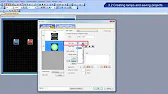
How to Create Lamps and Save Projects in GT Designer3 for Mitsubishi GOT HMI Indicator lamps are critical in Human-Machine…
-
08 GT Designer3 – Transferring project data
How to Transfer Project Data in GT Designer3 for Mitsubishi GOT HMI Transferring project data is a critical process in…
-
09 GT Designer3 – Connecting the GOT to the PLC
How to Connec the GOT to the PLC in GT Designer3 Connect the Mitsubishi GOT (Graphical Operation Terminal) to a…
-
10 GOT Maintenance – Necessity of maintenance

GOT Maintenance – Understanding the Necessity of Maintenance for Mitsubishi GOT HMIs Maintaining Mitsubishi GOT (Graphical Operation Terminal) HMIs is…
-
11 Mitsubishi GOT – Backing up the GOT data
Mitsubishi GOT – Backing Up the GOT Data for Mitsubishi HMIs Backing up data from Mitsubishi GOT (Graphical Operation Terminal)…
-
12 Mitsubishi GOT Maintenance – Addressing of alarms
Mitsubishi GOT Maintenance – Addressing Alarms in Mitsubishi HMIs Addressing alarms effectively in Mitsubishi GOT (Graphical Operation Terminal) HMIs is…
-
13 GOT Maintenance – Replacement of a battery
GOT Maintenance – Replacing the Battery in Mitsubishi HMIs Replacing the battery in Mitsubishi GOT (Graphical Operation Terminal) HMIs is…
-
14 Mitsubishi GOT – Ending
Mitsubishi GOT – Course Conclusion Congratulations on completing the “Your First GOT” course! Throughout this journey, you’ve gained essential knowledge…
Why Screen Layout Matters in HMI Design
A clear, intuitive layout allows operators to quickly access and understand essential information, improving system oversight and response times. With an organized display, operators can find controls, monitor data, and respond to alerts efficiently, minimizing downtime and ensuring safer operations.
Benefits of Optimizing Screen Layouts in GT Designer3:
- Improved Usability: Simplified navigation and well-organized screens help operators locate controls easily.
- Enhanced Readability: Proper element placement and sizing make key data more accessible at a glance.
- Reduced Errors: Consistent layouts reduce the learning curve, minimizing mistakes in high-stress scenarios.
Step 1: Planning Your Screen Layout Structure
Before starting the design, plan a basic structure to guide the organization of elements. Group similar controls, prioritize critical data, and establish a consistent layout across all screens.
Defining Functional Zones
Functional zones categorize screen areas based on their purpose, allowing operators to quickly locate data and controls:
- Main Data Area: Place primary metrics (e.g., temperature, pressure) centrally for easy monitoring.
- Control Zone: Allocate a section for buttons and sliders to control equipment or processes, often along the bottom or right side.
- Navigation Panel: Position navigation buttons to access other screens or settings, typically along the top or left side for ease of access.
- Alarm/Status Display: Set aside space for notifications, warnings, and alerts, usually at the top or bottom of the screen.
Consistent Layout Across Screens
For systems with multiple screens, ensure a consistent structure across each one. This reduces operator confusion and enables faster navigation, especially in dynamic environments.
- Uniform Positioning: Keep elements like data displays, controls, and navigation buttons in similar positions on all screens.
- Standardized Colors and Fonts: Use the same colors and font styles across screens to create a cohesive look.
Step 2: Arranging Data Displays for Clarity
Data displays are the primary elements operators interact with, so arranging them for maximum visibility is key. GT Designer3 allows you to add various visual elements, such as numeric fields, graphs, and gauges, to represent data effectively.
Prioritizing Critical Data
Highlight the most important information by positioning it centrally or using larger fonts and colors.
- Larger Fonts for Key Metrics: For critical data like operational status or key process metrics, use larger fonts to ensure visibility.
- Grouping Related Data: Group related data fields together, such as temperature, pressure, and flow rate, so operators can assess multiple parameters at once.
Using Graphs and Trend Displays
Graphs provide a visual representation of data trends, helping operators track changes over time.
- Time-Based Graphs: Display time-based trends to observe gradual changes or identify anomalies quickly.
- Data Colors: Assign different colors to each data trend (e.g., temperature in red, pressure in blue) for clarity.
Integrating Analog Gauges
Analog gauges simulate traditional dials, making them ideal for displaying dynamic data like speed, temperature, or pressure.
- Gauge Placement: Position gauges where they are visible but not obstructing other critical data.
- Color Cues: Use color-coded sections (green, yellow, red) to indicate safe, caution, and critical ranges.
Step 3: Adding and Organizing Control Elements
Control elements allow operators to interact with the system directly from the HMI. Buttons, sliders, and toggles must be easily accessible and responsive.
Placing Control Buttons
Position commonly used buttons, like start, stop, or reset, where operators can reach them easily, often near related data displays.
- Logical Grouping: Arrange buttons by function, such as grouping “start” and “stop” controls together.
- Color and Size: Use larger, color-coded buttons (e.g., red for stop, green for start) to prevent accidental presses.
Using Sliders and Input Fields for Adjustable Parameters
For systems that require adjustments, such as speed or temperature, use sliders or input fields to provide operators with fine control over values.
- Slider Placement: Place sliders near the relevant data display, allowing operators to adjust values and see immediate results.
- Limits and Lockouts: Configure limits on adjustable controls to prevent settings outside safe operating ranges.
Step 4: Designing Navigation for Ease of Access
Navigation tools in GT Designer3 guide operators through different screens, such as main controls, settings, and alarms. Designing clear navigation improves usability and minimizes time spent switching screens.
Adding a Navigation Menu
A fixed navigation menu enables quick access to frequently used screens.
- Top or Side Panel: Position the navigation menu along the top or side of the screen, keeping it easily accessible without blocking data.
- Icons and Labels: Use labeled icons for quick recognition of each screen’s function (e.g., home, settings, alarms).
Linking Screens for Workflow Efficiency
Link screens logically to create an efficient workflow, especially if certain screens are used in sequence.
- Direct Access Buttons: For screens that operators need frequently (e.g., alarm and home), add direct access buttons on multiple screens.
- Screen Shortcuts: Create shortcuts to settings or data views related to the current screen’s function, such as linking from an alarm to the troubleshooting guide.
Step 5: Incorporating Alerts and Notifications
Alerts and notifications inform operators of system issues, requiring clear, visible placement to ensure quick response.
Configuring Alarm Indicators
Alarm indicators highlight abnormal conditions, prompting immediate operator action.
- Positioning: Place alarms in a dedicated section at the top or bottom of the screen for easy visibility.
- Color-Coded Severity: Use colors to differentiate severity—green for normal, yellow for caution, red for critical issues.
Adding Pop-Up Alerts
Pop-up alerts bring attention to urgent issues without navigating away from the current screen.
- Pop-Up Placement: Set pop-ups to appear centrally for maximum visibility but ensure they don’t obscure critical data.
- Acknowledge Buttons: Include an “Acknowledge” button to confirm receipt of the alert, reducing repeated notifications.
Step 6: Finalizing Layout with GT Designer3’s Simulation Mode
Testing the layout in GT Designer3’s simulation mode verifies that screen elements are organized effectively and that controls work as expected.
Running Simulation Tests
Use the simulation mode to preview your screen design and test navigation, controls, and alarms in a virtual environment.
- Test Navigation Flow: Ensure all navigation buttons lead to the correct screens and that operators can move between screens smoothly.
- Validate Control Response: Interact with buttons and sliders to confirm they respond as intended.
- Check Alarm Visibility: Trigger sample alarms to verify they display correctly and are easy to acknowledge.
Refining Layout Based on Feedback
Simulation feedback may reveal areas that need adjustment, such as rearranging controls, resizing elements, or adjusting colors for visibility.
- Adjust Control Sizes: Resize buttons or sliders if they are difficult to interact with in simulation.
- Refine Font and Color: Adjust text size and color contrast based on readability feedback from the simulation.
Practical Applications of Screen Layouts in Industry
GT Designer3’s layout tools support a wide range of applications by enabling customized, efficient screen designs tailored to each industry’s needs.
- Manufacturing: Streamlined layouts help operators monitor production lines, control machines, and manage alarms in real time.
- Building Automation: Layouts with HVAC, lighting, and security controls allow facility managers to adjust settings and monitor conditions from a centralized HMI.
- Energy and Utilities: Screens displaying voltage, current, and load allow operators to monitor and balance energy resources effectively.
- Water Treatment: Data-rich layouts track flow rates, pH levels, and tank capacities, helping operators maintain safe water quality.
FAQs
What is GT Designer3?
GT Designer3 is Mitsubishi’s screen design software for creating custom HMIs on GOT terminals, offering tools for designing layouts, configuring data connections, and simulating screen functions.
How do I create a consistent screen layout in GT Designer3?
Group elements by function, use uniform positioning across screens, and maintain consistent colors and font styles to create a cohesive, user-friendly layout.
Why is simulation important in GT Designer3?
Simulation allows you to test screen layouts, navigation, and controls before deployment, ensuring the design is functional and efficient for real-world use.
What elements can I add to my HMI layout in GT Designer3?
GT Designer3 allows you to add various components, including data displays, control buttons, sliders, graphs, gauges, alarms, and navigation tools, to create comprehensive HMIs.
How can I make navigation easier in GT Designer3?
Use a navigation menu, place direct access buttons for frequently used screens, and add screen shortcuts to streamline navigation for operators.
Can I customize alarm appearance in GT Designer3?
Yes, you can configure alarms with different colors, sounds, and pop-ups to distinguish severity levels and ensure alarms are visible and acknowledged.
Conclusion
An effective screen layout in GT Designer3 makes Mitsubishi GOT HMIs more intuitive and user-friendly, enhancing operational efficiency and safety. By organizing data displays, controls, and navigation elements strategically, operators can access critical information quickly and easily. With simulation and design tools in GT Designer3, you can create clear, functional, and customized layouts tailored to specific applications, making Mitsubishi GOT HMIs a powerful tool in industrial automation.